1Extn/Tips
Tip of the Month

One extension.
Many possibilities.

You don't need a different Safari extension for every little task. 1Extn is one extension that lets you choose what it does, create your own webpage tools, and run trusted scripts automatically.

A practical guide to getting more from 1Extn on iPhone, iPad and Mac.

The big idea

Keep one extension.
Change the function.

Enable the Safari extension called 1Extn. Then select a built-in tool or saved script for the task at hand. Want a different result? Switch the selected tool or script—there's no need to install a new Safari extension for each small webpage customization.

You can begin with ready-to-use features, add your own JavaScript, or describe a script you want with AI assistance in the app.

Built-in toolsManual scriptsAuto RunAI-assisted scripts
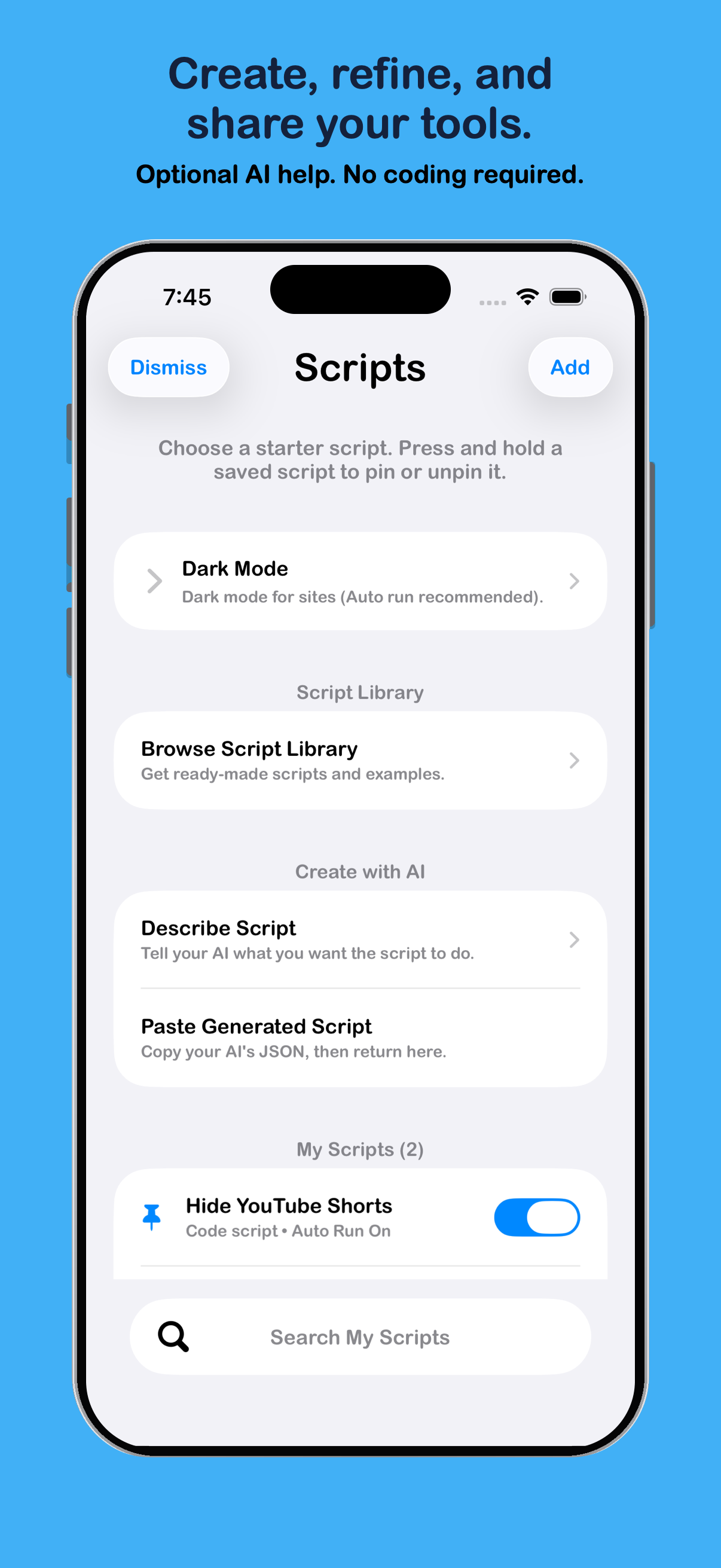
Actual 1Extn Scripts screen showing starter scripts, Script Library, Create with AI, and My Scripts.

Run one when you want. Run several when you don't want to think about it.

Manual execution and Auto Run are different options within the same 1Extn Safari extension. You stay in control of each one.

01 · MANUAL

You choose when it runs.

Best for occasional tools—like highlighting links or zooming into an image.

  1. In 1Extn, open Scripts and select a starter script or one saved in My Scripts.
  2. Choose the script you want available for manual use.
  3. Open the target webpage in Safari, access the 1Extn extension, and run your selected script.
Remember: manual execution runs one selected script at a time. Change your selection whenever you need another tool.
02 · AUTO RUN

Your trusted scripts do the work.

Best for site-specific customizations you want applied routinely.

  1. Save a script in My Scripts and test it manually on the intended site.
  2. Enable Auto Run for that trusted script and configure the websites it should match.
  3. Repeat for other scripts. Multiple enabled scripts can run on their matching websites in Safari.
Remember: Auto Run is optional. Downloaded scripts don't turn it on automatically, and script behavior depends on website and Safari permissions.

Make, save and share the tools you use.

The Scripts area is more than a place to run JavaScript. My Scripts lets you keep a reusable collection of webpage customizations, whether you made them yourself or imported them.

Manage your scripts

Save, search, edit, organize, import, export, and share scripts. Choose which one to run manually and which trusted ones can Auto Run.

Describe it with AI

Use the app's AI-assisted script creation to describe the webpage change you want. Review the generated JavaScript, test it, and save what works.

Bring your own

Add your own JavaScript, compatible userscripts, or a trusted script from a supported link. You can revise the code later in My Scripts.

Don't start from a blank page.

The 1Extn Script Library has downloadable .1extnscript examples. Browse the collection, pick a script, and add it to your own toolkit.

  1. Visit the Script Library and select Get Script.
  2. Open the downloaded .1extnscript file in 1Extn.
  3. Review the code, save it to My Scripts, and choose manual execution or optional Auto Run.
Want to share a script you've made?

Use 1Extn's script export or sharing options to pass your saved tool to someone else. They can import, review and save it in their own copy of 1Extn. Remove any personal information from code before sharing.

One Safari extension. Choose what it does.
Create what you need. Automate what you use.

Return to 1Extn